WordPress 后台添加提示框
WordPress 3.5 新添加了一个提示框功能,可以创建一个提示框,然后指向任何元素,比如下边的例子:
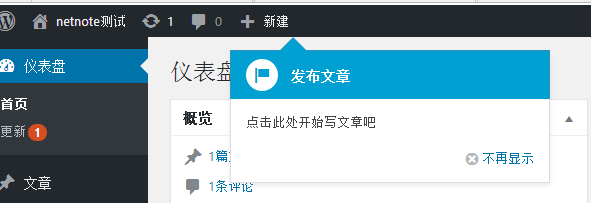
点击不在显示后显示另一个提示框:
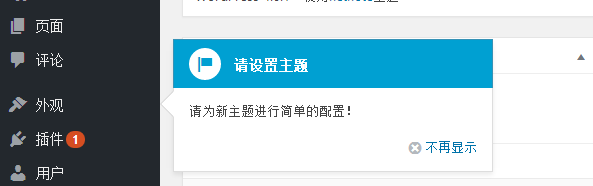
本文就来教你怎么创建一个这样的提示框。
首先需要添加提示框的脚本,这样才能使用提示框的 JS 方法。
//挂载提示框脚本
function netnote_admin_pointer_enqueue_scripts(){
    wp_enqueue_style( 'wp-pointer' );
    wp_enqueue_script( 'wp-pointer' );
}
add_action( 'admin_enqueue_scripts', 'netnote_admin_pointer_enqueue_scripts' );
然后使用 pointer() 方法创建一个简单的提示框:
/**
    *WordPress 后台添加提示框
*/
function netnote_add_pointer_scripts(){
    $content = '<h3>请设置主题</h3>';
    $content .= '<p>请为新主题进行简单的配置!';
?>
    <script type="text/javascript">
    //<![CDATA[
    jQuery(document).ready(function($){
        $('#menu-appearance').pointer({//可以指向任何元素
            content: '<?php echo $content; ?>',
            position: {
                edge: 'left',//top,bottom,right根据提示位置选择
                align: 'center'
            },
            close: function(){
                //提示框关闭之后做的事情,如打开另一个提示框
            }
        }).pointer('open');
    });
    //]]>
    </script>
<?php
}
add_action( 'admin_print_footer_scripts', 'netnote_add_pointer_scripts' );
方法来自http://www.endskin.com/admin-pointer/
由于每次刷新或者换页面的时候都要弹出提示框,本人加入cookie简单修改,关闭后正真不在显示,综合代码:
function netnote_add_pointer_scripts(){
   $content = '<h3>发布文章</h3><p>点击此处开始写文章吧</p>';
   $content2 = '<h3>请设置主题</h3><p>请为新主题进行简单的配置!</p>';
?>
//引入jquery和cookie插件
<script type="text/javascript" src="jquery.min.js"></script>
<script type="text/javascript" src="jquery.cookie.js"></script>
<script type="text/javascript">
  //<![CDATA[
 jQuery(document).ready(function($){
     $('#wp-admin-bar-new-content').pointer({//可以指向任何元素
        content: '<?php echo $content; ?>',
        position: {
            edge: 'top',
            align: 'left'
        },
        close: function(){
            //提示框关闭之后做的事情
            $('#menu-appearance').pointer({//可以指向任何元素
              content: '<?php echo $content2; ?>',
              position: {
                   edge: 'left',
                   align: 'center'
              },
              close: function(){
              //提示框关闭之后做的事情
              //设置cookie
             $.cookie("the_cookie", "the_value",{ path: '/', expires: 10 });
              }
          }).pointer('open');
       }
     }).pointer('open');
 //判断cookie
 if($.cookie("the_cookie")=="the_value" ){
     $('#wp-pointer-0').css({"display":"none"});
 }
 });
 //]]>
</script>
<?php
}
add_action( 'admin_print_footer_scripts', 'netnote_add_pointer_scripts' );

//挂载提示框脚本
function netnote_admin_pointer_enqueue_scripts(){
   wp_enqueue_style( 'wp-pointer' );
   wp_enqueue_script( 'wp-pointer' );
}
add_action( 'admin_enqueue_scripts', 'netnote_admin_pointer_enqueue_scripts' );